![logo-pyx4-white.png]](https://support.pyx4.com/hs-fs/hubfs/logo-pyx4-white.png?height=50&name=logo-pyx4-white.png)
The API page, available in the User module settings, allows administrators to easily generate the URL required to query the API.
This page is accessible to users who are administrators of at least one module.
1.1 Data Selection (Available PYX4 Entities)
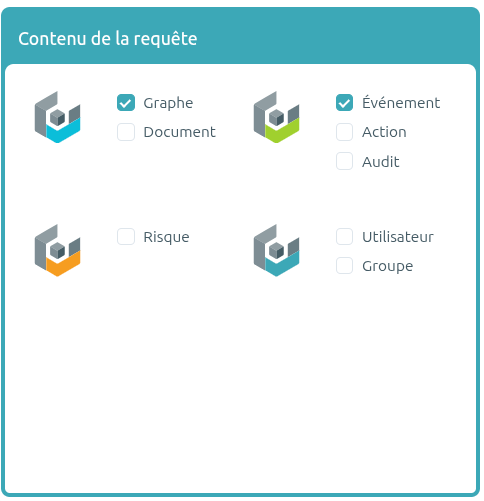
Users begin by selecting the data entities they wish to retrieve (Graphs, Actions, Users, etc.) from the Query Content panel.
Users can select as many entities as their available credits allow, knowing that:
- 1 entity = 1 credit
1.2 Filters
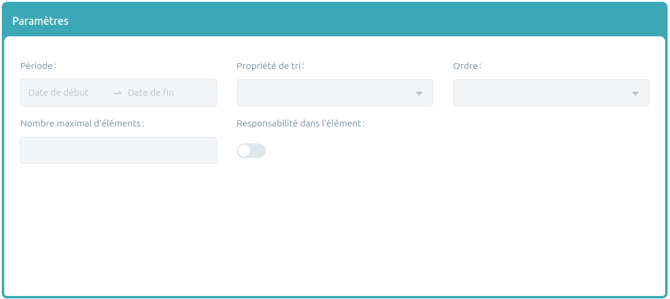
The Parameters panel allows users to apply specific filters to refine API results.
Period
Users can select a start date and an end date so that only records falling within the selected date range are returned.
Sort Property
Allows results to be sorted by:
- Creation date
- Last update date
- Alphabetical order
Order
- Ascending
- Descending
Responsibility within the Item
When enabled, the API will only return items in which the user has a role or responsibility (author, contributor, etc.).
Maximum Number of Items
Allows users to limit the number of results returned.
If multiple entities are selected, the specified limit will apply individually to each entity.
Default Values
If no filters are modified, the generated query will use the following default settings:
- No date restriction
- Sorted by creation date in descending order
- Responsibility filter disabled
- No result limit (all available records are returned)
1.3. Credit System
The API operates using a shared credit system at the instance level (not per individual user). Credits are reset daily according to the subscription plan selected by the customer.
Each entity costs 1 credit.
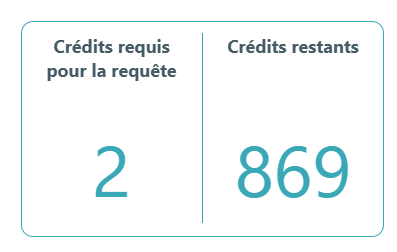
For example, if a user selects both Graphs and Actions, the request will cost 2 credits, and the Credits Required for the Query indicator will display 2.
Filters do not impact the cost of a query.
To monitor usage, users can view the number of remaining credits at any time in the Remaining Credits section located in the upper-right corner of the page. This value is updated in real time.
For example, if another user executes an API request, the displayed credit balance will automatically update to reflect the credits consumed by that request.
If the cost of the query being prepared exceeds the instance's available credit balance, the selected entities and filters will be automatically deselected.
1.4. Query Generation
The query URL is updated instantly whenever an entity is selected or a parameter is modified.
Clicking the Copy button copies the generated URL, ready to be pasted into the customer's preferred tool.
The user can then add their API key (see below) directly into the designated section of the URL. In the generated URL, YOUR_KEY_VALUE represents the user's API key.

The API Keys page allows administrators to generate, view, and delete API keys required for API access.
This page is only accessible to administrators of the User Management module.
2.1 DashboardThe page displays a list of all active API keys on the instance, sorted by most recent usage.
2.2 Creating a New API KeyAPI key creation follows the rules below:
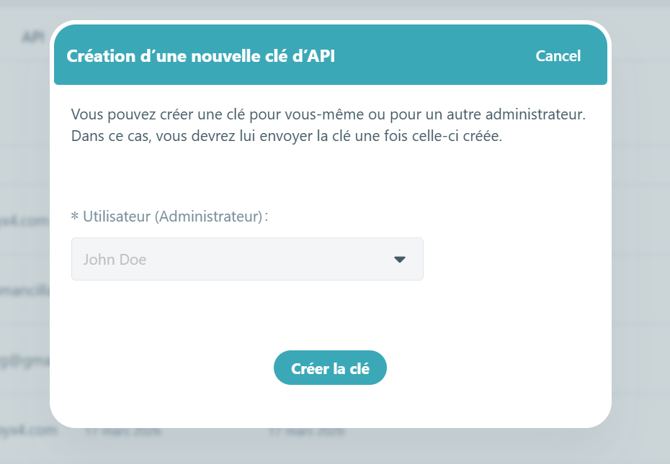
- Only administrators of at least one module can be assigned an API key.
- An administrator may have only one active API key at a time.
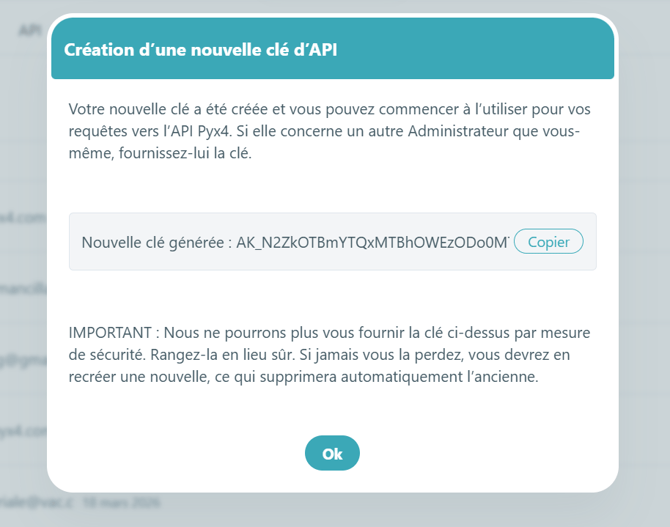
- Once the Create Key button is clicked, the API key is generated and displayed so it can be copied.
- Important: This is the only time the key will ever be visible.
- If a user loses or forgets to copy their key, it cannot be recovered. The only solution is to delete the existing key and generate a new one.
- If an administrator who owns an API key is later downgraded to a standard user, the key is automatically deactivated.
- Likewise, if the user's account is deactivated on the instance, the API key is automatically disabled.
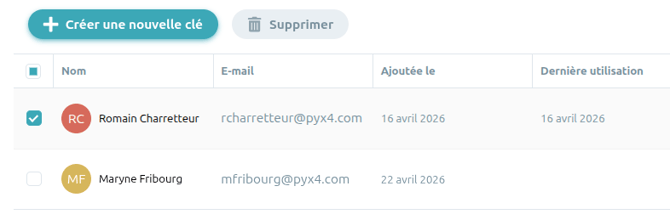
Users can delete one or multiple API keys by selecting them individually.
The Delete button becomes available as soon as at least one key is selected.
Deleting a key immediately revokes the key holder's access to the API. Any subsequent API request using that key will return an error.
No credits are consumed when a request fails due to an invalid or deleted API key.
Page 3 : PYX4 Data Usage Example
The following example illustrates a typical use case, from API key generation to the automation of a workflow that creates calendar invitations for reviewing overdue actions in Improver.
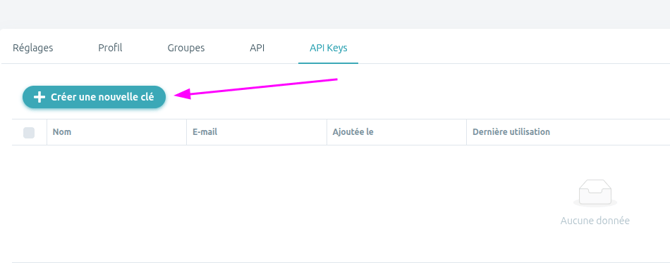
Step 1 – Create a New API KeyCreate a new API key from the API Keys page.
Confirm the key creation and assign the appropriate owner.
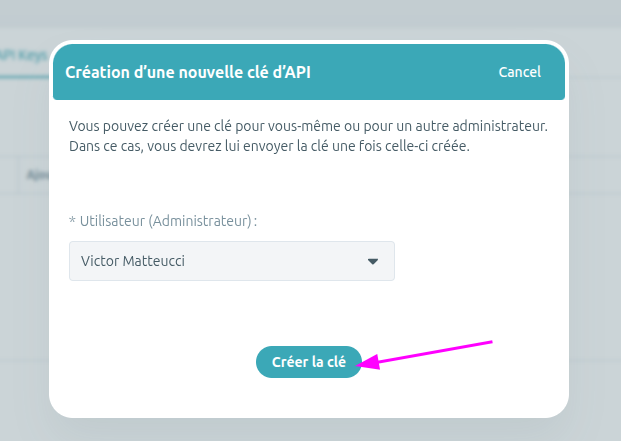
Step 3 – Generate the API Key
Copy and securely store the generated API key.
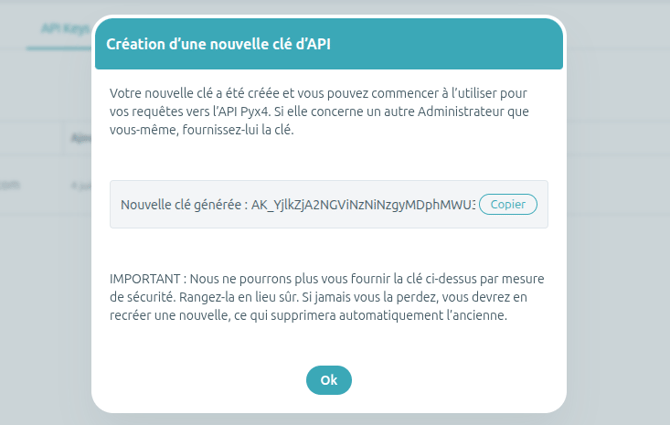
Step 4 – Generate the Query URL
Build a query that exports Actions from the Improver module.
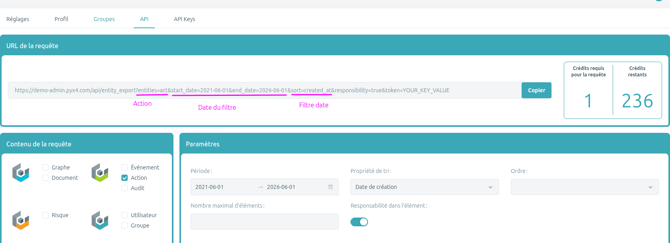
Step 5 – Retrieve Action Data
Execute the API request and retrieve the exported action data.
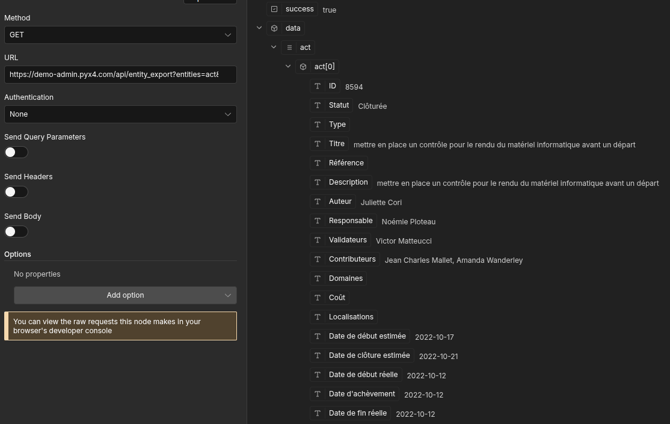
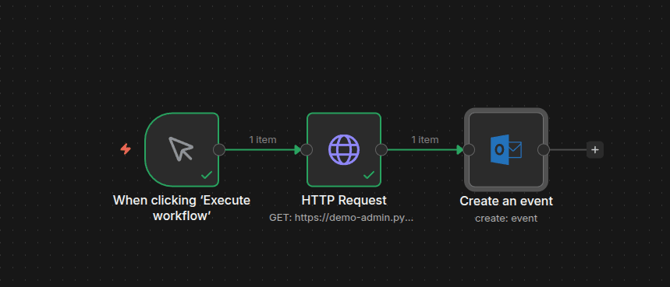
Step 6 – Create an Automated Workflow
Use the exported data to build an automated workflow that:
- Retrieves overdue actions from PYX4
- Creates calendar events
- Sends meeting invitations to the relevant stakeholders for action review
Step 7 – Generated Invitation Example
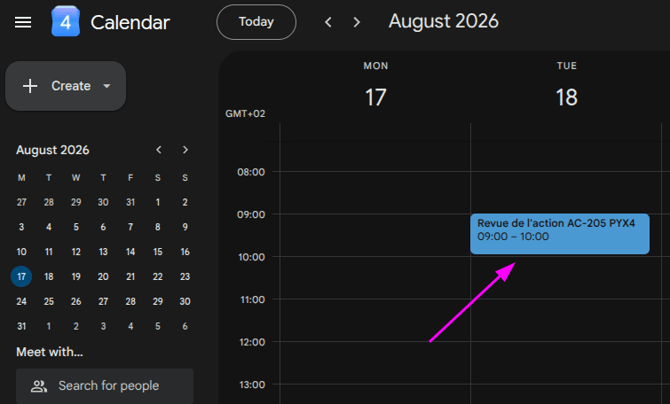
The workflow automatically generates calendar invitations, ensuring overdue actions are reviewed and followed up appropriately.